
How to Stop Google Photos Syncing Without Deleting Photos from Your Device

David Sterling
Lead Technical Editor
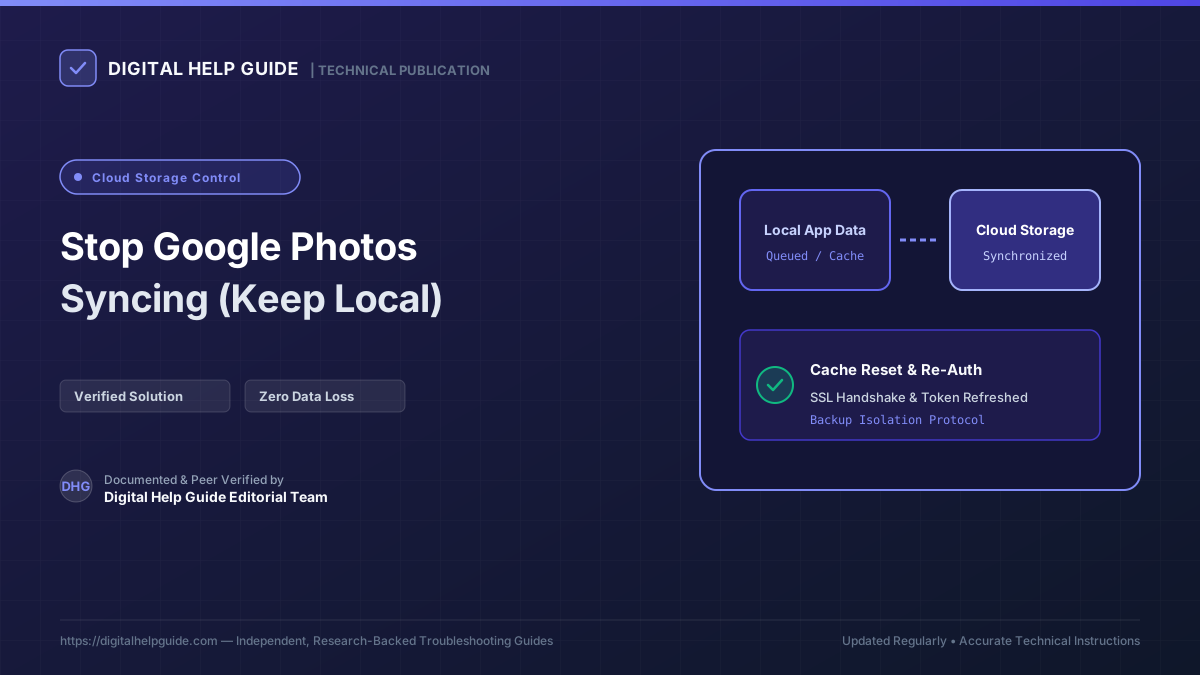
Google Photos is one of the most widely used gallery tools on Earth, but its two-way cloud synchronization model confuses millions of users.
When your 15GB Google Cloud storage fills up, your first instinct is often to open the Google Photos app on your smartphone and start deleting old videos to clear space. However, doing so deletes the local copy stored on your physical phone, causing accidental loss of irreplaceable memories.
Here is the verified method to isolate your phone storage, disable cloud backup, and reclaim Google cloud space without losing a single local picture.
The Golden Rule of Google Photos
Warning: Never tap the trash can icon inside the Google Photos app on your phone if you want to keep the photo on your device.
The Google Photos mobile app functions as a bidirectional sync manager. Deletions made inside the app synchronize directly to your device storage. To break this sync loop, follow the two-step isolation process below.
Step 1: Turn Off Backup in the Google Photos App
First, prevent the phone from synchronizing future changes or re-uploading your gallery:
- Open the Google Photos app on your iPhone or Android phone.
- Tap your Profile picture in the upper-right corner.
- Tap Photos settings (or the gear icon).
- Tap Backup.
- Toggle the Backup switch to Off.
Your mobile device is now decoupled from automated cloud uploads. Photos taken with your camera will remain strictly on your internal device storage.
Step 2: Delete Cloud Photos via a Web Browser (Safest Method)
Now that mobile backup is disabled, manage and delete photos from Google’s cloud servers without affecting your phone’s physical storage:
- Open a web browser on a desktop computer or laptop (do not use your phone’s browser).
- Visit photos.google.com and log in with your Google account.
- Select the photos and videos you want to purge from cloud storage.
- Click the Trash icon in the upper-right corner of the web interface.
- Google will display a confirmation dialog: “Move to trash? Items will be removed from your Google Account and from any synced devices.”
- Click Move to trash.
- Because Backup was disabled on your smartphone in Step 1, the local files on your physical device remain completely untouched.
Step 3: Prevent Accidental Local Deletions on iPhone (iOS Users)
On iOS, Google Photos communicates with the native Apple Photos library via the PhotoKit framework. If you open Google Photos after cloud deletion:
- A prompt may appear: “Allow Google Photos to delete X items?”
- Always tap “Don’t Allow”. This protects your local iPhone camera roll.
- Better yet, delete the Google Photos app from your iPhone altogether and rely exclusively on Apple Photos and local backups.
Step 4: Empty the Cloud Trash to Reclaim Storage
Files moved to trash continue consuming your 15GB quota for 60 days unless purged:
- On photos.google.com, click Trash in the left navigation sidebar.
- Click Empty trash in the upper right.
- Confirm by clicking Empty trash.
- Check your storage quota at one.google.com/storage. Your Google Drive and Gmail quotas will reflect the newly freed space within 10 to 15 minutes.
Frequently Asked Questions
If I delete a photo in the Google Photos mobile app, does it delete from my Apple Photos or Gallery?
Yes. On both Android and iPhone, granting Google Photos photo library access links the two. Deleting a photo in the Google Photos app prompts iOS or Android system dialogs to delete the local file as well.
How can I see only photos saved locally on my device?
On Android, tap 'Collections' (or Library) at the bottom and view the 'Photos on device' section. On iPhone, use the native Apple Photos app rather than Google Photos.
Will turning off Backup prevent Google Photos from organizing my photos?
Google Photos will still function as a local gallery viewer, but cloud facial recognition, automatic memory montages, and web access will be paused.
David Sterling
Lead Technical Editor Verified InstructionsSpecializing in operating system diagnostics, hardware drivers, and digital workflows. Guided by our strict Editorial Policy to ensure safe, reproducible procedures.
Last tested and verified on: March 2026
Authoritative Sources & Citations
In accordance with our strict Research Methodology, every technical instruction is cross-verified against official vendor documentation.
- 1Official SupportGoogle Photos Help: Back up photos and videoshttps://support.google.com/photos/answer/6193313
- 2Official SupportGoogle Photos Help: Delete photos and videoshttps://support.google.com/photos/answer/6128858