How to Reduce Google Chrome High Memory & RAM Usage in 2026

David Sterling
Lead Technical Editor
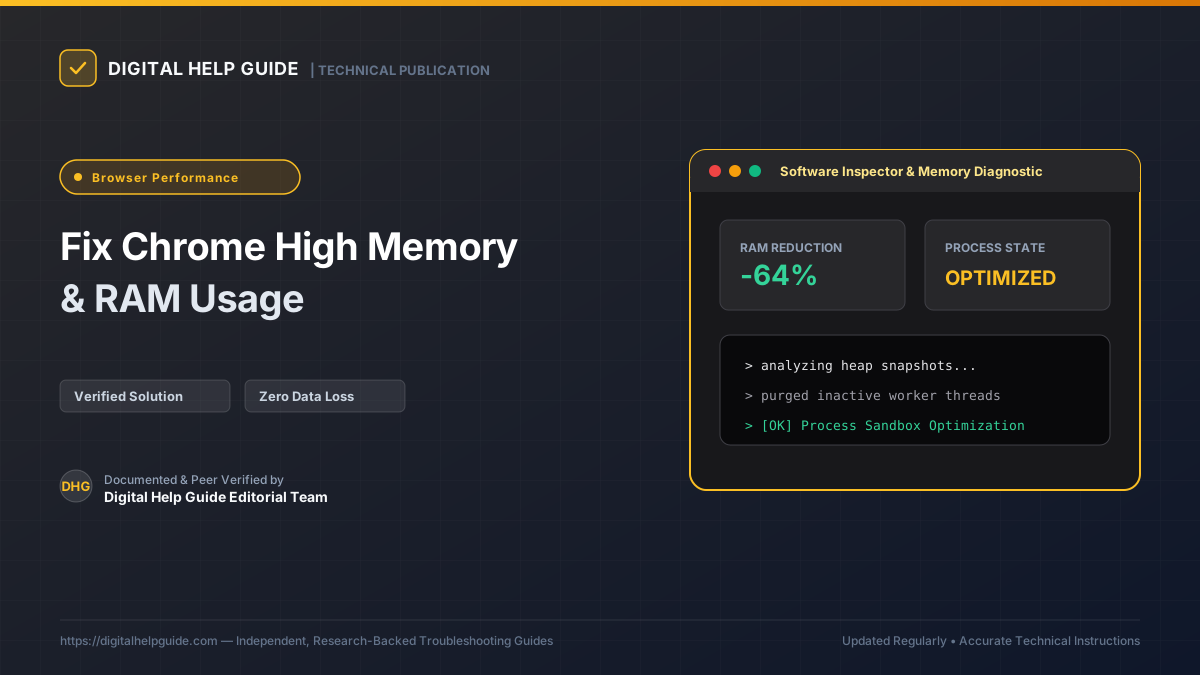
Google Chrome continues to dominate the global web browser market, but its reputation as a resource-hungry memory hog remains well-earned. When having a dozen browser tabs open consumes 6 GB to 10 GB of system RAM, background programs stutter and laptop battery life plummets.
Chrome’s memory consumption is largely intentional: its Site Isolation security model isolates every domain into an independent operating system process to protect sensitive login cookies from cross-site scripting vulnerabilities.
However, you do not need to endure performance bottlenecks. Follow these five verified configuration adjustments to dramatically curb Chrome’s memory footprint without sacrificing browsing speed.
Step 1: Activate Native Chrome “Memory Saver”
Google built an intelligent memory freeing engine into recent Chrome releases that automatically suspends background tabs:
- Open Chrome and click the three dots in the top-right corner.
- Select Settings.
- In the left navigation panel, click Performance.
- Locate the Memory Saver toggle and turn it On.
- Choose your preferred aggressiveness:
- Moderate: Frees memory after tabs have been inactive for an extended period.
- Balanced: Balances system needs with tab responsiveness.
- Maximum: Suspends background tabs quickly after you switch focus.
- If you have critical tabs that must never go to sleep (such as web radio, email dashboards, or real-time trading terminals), add them to the Always keep these sites active exclusion list.
Step 2: Identify Rogue Tabs Using Chrome’s Built-in Task Manager
Windows Task Manager groups all Chrome processes together, making it difficult to spot the offending tab. Chrome includes its own internal Task Manager that reveals exact RAM and CPU usage per tab:
- In Chrome, press
Shift + Esc(or click Three Dots > More Tools > Task Manager). - Click the Memory footprint column header to sort processes from highest to lowest consumption.
- You will immediately see which specific tab or extension is consuming excessive RAM:
- Single tabs with bloated video feeds or complex single-page apps often consume over 1,000 MB (1 GB).
- Highlight any runaway tab and click End process.
Step 3: Audit and Remove Bloated Extensions
Browser extensions run persistently in the background across all tabs. Many ad-trackers, coupon finders, and translation tools leak memory continuously:
- In Chrome address bar, navigate to:
chrome://extensions/ - Review all installed extensions.
- Toggle off or click Remove on extensions you do not use daily.
- For essential extensions, click Details and verify their site access permissions. Change permission from “On all sites” to “On click” to prevent them from executing scripts on every page you visit.
Step 4: Toggle Hardware Acceleration Appropriately
On PCs with dedicated graphics cards (NVIDIA/AMD), Chrome offloads rendering to the GPU. However, on machines with older integrated graphics, hardware acceleration can trigger massive VRAM leaks:
- Go to Settings > System.
- Locate Use graphics acceleration when available.
- If Chrome frequently freezes or spikes RAM, toggle this option Off and click Relaunch.
- Test performance. If page scrolling becomes choppy, turn it back on.
Step 5: Clean Chrome Cache & Reset Corrupted Flags
Stale shader caches and experimental flags can cause the Chromium rendering pipeline to fragment memory:
- In the address bar, type
chrome://settings/clearBrowserData. - Select the Advanced tab.
- Set time range to All time.
- Check Cached images and files and click Clear data.
- Navigate to
chrome://flags/and click Reset all in the top right to restore optimal factory pipeline parameters.
Frequently Asked Questions
Why does Chrome have 20+ processes running in Task Manager with only 4 tabs open?
Chrome spawns separate system processes for the browser UI, GPU hardware acceleration, network service, audio service, storage handlers, and every enabled extension, in addition to web page tabs.
Does Chrome Memory Saver discard or close my open tabs?
No. Memory Saver frees RAM by placing inactive tabs into a suspended hibernation state. The tab title and favicon remain in your tab bar, and clicking it immediately reloads the page from cache.
Are third-party 'Tab Suspender' extensions still necessary?
No. Chrome now contains a native C++ Memory Saver engine that is faster, uses zero additional RAM, and avoids the security risks associated with third-party extensions injecting scripts.
David Sterling
Lead Technical Editor Verified InstructionsSpecializing in operating system diagnostics, hardware drivers, and digital workflows. Guided by our strict Editorial Policy to ensure safe, reproducible procedures.
Last tested and verified on: March 2026
Authoritative Sources & Citations
In accordance with our strict Research Methodology, every technical instruction is cross-verified against official vendor documentation.
- 1Official SupportGoogle Chrome Enterprise: Memory Saver and Energy Saver policieshttps://support.google.com/chrome/a/answer/12971279
- 2Technical DocsChromium Projects: Multi-process Architecture and Site Isolationhttps://www.chromium.org/developers/design-documents/multi-process-architecture/

