How to Repair Damaged Boot Configuration Data (BCD) in Windows 11 and 10

David Sterling
Lead Technical Editor
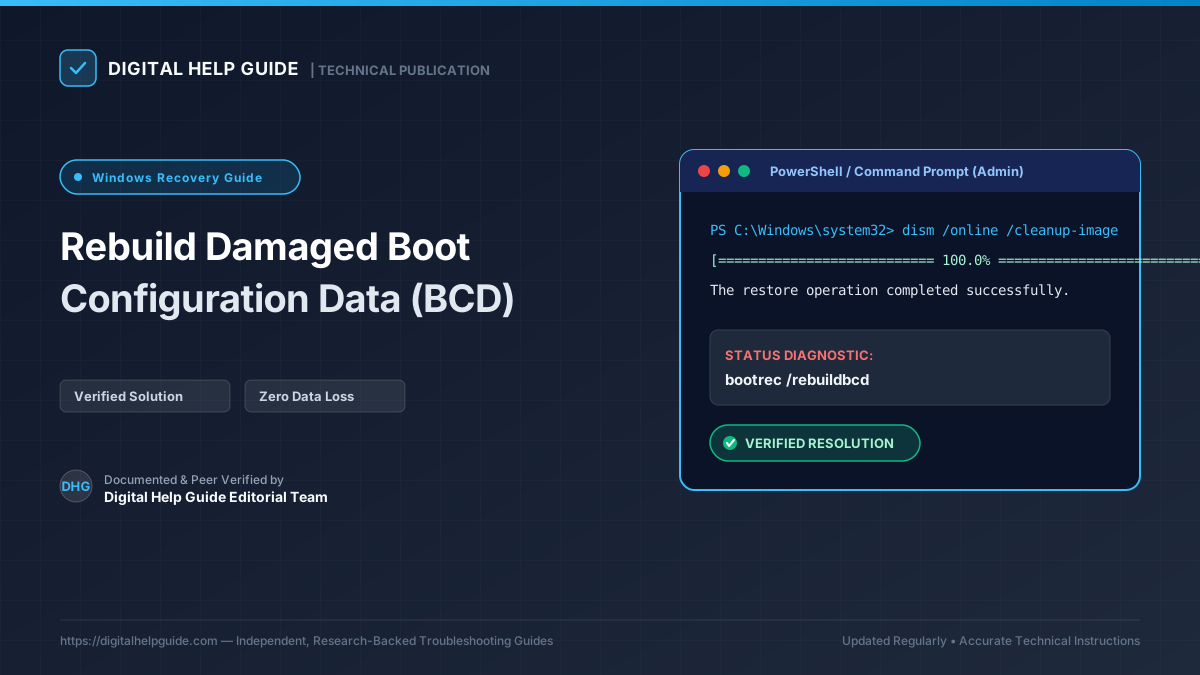
Powering on your computer only to be greeted by a blue recovery screen displaying Error code: 0xc0000034 or 0xc0000098 (“Your PC/Device needs to be repaired. The Boot Configuration Data file is missing some required information”) can feel catastrophic.
However, in 99% of cases, your operating system, personal files, and programs are completely intact. The only issue is that the small UEFI pointer database known as the Boot Configuration Data (BCD) store has lost its reference to the Windows kernel (winload.efi).
This guide details the exact recovery protocol to recreate a clean BCD store and boot successfully.
What Is the Boot Configuration Data (BCD)?
In modern UEFI-based computers, the firmware boots from an isolated FAT32 EFI System Partition (ESP) rather than relying on legacy Master Boot Records (MBR).
The ESP contains the Windows Boot Manager (bootmgfw.efi) and the BCD file (\EFI\Microsoft\Boot\BCD). The BCD provides:
- The exact partition UUID where Windows is installed.
- Kernel launch flags (Safe Mode, hypervisor settings, memory debug).
- Pointers to OS recovery environments (
WinRE).
When this file is zero-byte truncated or damaged by an incomplete update, Windows cannot initiate the boot sequence.
Step 1: Boot into Windows Recovery Environment (WinRE)
To fix the boot loader, you must run commands outside the active Windows environment.
- Option A (No USB Required): Turn on your PC. As soon as you see the manufacturer logo (Dell, HP, ASUS, etc.), press and hold the power button for 5 seconds to force a shutdown. Repeat this two consecutive times. On the third restart, Windows triggers Automatic Repair.
- Option B (Using Windows Installation USB): Insert a standard Windows 11 installation flash drive, boot from the USB, choose your language, and click Repair your computer in the bottom-left corner.
- In the recovery menu, select: Troubleshoot > Advanced options > Command Prompt.
Step 2: Attempt the Standard bootrec Sequence
First, try the automated Microsoft boot recovery utility:
bootrec /fixmbr
bootrec /fixboot
bootrec /scanos
bootrec /rebuildbcd- If
bootrec /fixbootreturns “Access is denied,” don’t panic—this is normal behavior on modern UEFI GPT drives because write protections are enforced on the active ESP. - When prompted to Add installation to boot list?, type
Yand press Enter. - If this succeeds, close Command Prompt and restart your PC.
If bootrec /scanos outputs “Total identified Windows installations: 0”, proceed to Step 3 below to manually recreate the EFI boot records.
Step 3: Recreate the EFI Boot Files Using bcdboot (Guaranteed UEFI Method)
Modern Windows 11 systems run strictly on UEFI with GPT partitioning. When bootrec fails, using diskpart and bcdboot directly writes fresh, pristine boot loader files from your C:\Windows directory to the EFI partition.
1. Launch Diskpart
In the recovery Command Prompt, type:
diskpart2. Locate Your Primary Volumes
list volumeExamine the list carefully and identify two crucial volumes:
- The Windows Volume: A large NTFS partition containing your files (note the assigned letter, e.g.,
C:orD:). - The EFI System Partition (ESP): A small partition (typically 100 MB to 260 MB) formatted as FAT32 with the label “System” or no label.
3. Assign a Temporary Drive Letter to the EFI Partition
Assuming the EFI partition is Volume 2:
select volume 2
assign letter=S
exit
(You have now mounted the EFI partition as drive S:).
4. Format and Write Fresh Boot Files
Navigate to the newly assigned boot drive:
cd /d S:\EFI\Microsoft\Boot\(If the folder doesn’t exist, proceed straight to the next command).
Now run the decisive bcdboot utility:
bcdboot C:\Windows /s S: /f UEFI(Replace C:\Windows with D:\Windows if your main drive was mapped as D in WinRE).
The terminal will report:
Boot files successfully created.Step 4: Verify the BCD Store
Before restarting, confirm the newly generated BCD contains valid boot manager entries:
bcdeditLook for:
- Windows Boot Manager:
devicepoints topartition=S:(or your EFI volume). - Windows Boot Loader:
devicepoints topartition=C:andpathpoints to\Windows\system32\winload.efi.
Type exit, disconnect any USB installation media, and click Continue: Exit and continue to Windows 11. Your system will now boot directly to the desktop.
What to Do If the System Still Fails to Boot
If your computer still returns boot errors after recreating the BCD, the underlying NVMe/SSD partition table or physical file system may have bad sectors:
- Re-open Command Prompt in WinRE.
- Run an offline disk integrity scan on your primary system drive:
chkdsk C: /f /r - Check your motherboard BIOS/UEFI settings to ensure SATA Operation / Storage Controller hasn’t switched between AHCI and RAID On / Intel RST, as changing controller modes prevents the bootloader from recognizing the storage volume.
Frequently Asked Questions
Will rebuilding the BCD delete personal files or desktop applications?
No. The BCD file is purely a boot loader pointer directory residing in your hidden 100MB EFI system partition. Rebuilding it touches zero personal data, photos, or documents on your Windows C: drive.
What should I do if 'bootrec /rebuildbcd' shows 'Total identified Windows installations: 0'?
This occurs on modern UEFI GPT disks when the BCD registry hive is locked or hidden. Use diskpart to assign a drive letter to the FAT32 EFI partition and run the 'bcdboot C:\Windows /s <driveletter>: /f UEFI' command directly.
Why does BCD corruption happen suddenly?
Common triggers include unexpected power shutdowns during Windows Updates, forced hard resets during partition resizing, failing SSD controller blocks, or conflicting dual-boot installations.
David Sterling
Lead Technical Editor Verified InstructionsSpecializing in operating system diagnostics, hardware drivers, and digital workflows. Guided by our strict Editorial Policy to ensure safe, reproducible procedures.
Last tested and verified on: March 2026
Authoritative Sources & Citations
In accordance with our strict Research Methodology, every technical instruction is cross-verified against official vendor documentation.
- 1Official SupportMicrosoft Learn: BCDBoot Command-Line Optionshttps://learn.microsoft.com/en-us/windows-hardware/manufacture/desktop/bcdboot-command-line-options-techref-di
- 2Technical DocsMicrosoft Support: Use Bootrec.exe in Windows RE to troubleshoot startup issueshttps://support.microsoft.com/en-us/topic/use-bootrec-exe-in-the-windows-re-to-troubleshoot-startup-issues-90ee40d2-4c97-1400-0d76-e41334c2143b